Twenty tabs about a trip, a report or a bug you have not fixed yet, and half of them are the same few sites. Two Wyrd commands deal with it: one puts the whole window away under a name, the other closes the copies and keeps one tab per site. Both save what they close, so you can bring it back.
If you keep dozens of tabs open because closing them feels like losing them, this is the way out: a session manager in the address bar. Switching projects becomes one command each way, and the tabs you put away stop using memory until you bring them back.
Short answer. Type > /clear research to save the window's tabs and close them, and > tabs/research to bring them back. Type > /dedupe to keep one tab per site; the copies it closes are saved as a bundle too.
Which one to use
| Way | Saves and closes in one step | Brings tabs back by name | Closes duplicates | Built into Chrome |
|---|---|---|---|---|
Wyrd tab bundles: /clear and /dedupe Recommended | Yes | Yes | Yes | No |
| Chrome tab groups | No | No | No | Yes |
| Chrome's Bookmark all tabs | No | No | No | Yes |
Chrome's own ways are covered in Google's help: tab groups and bookmarks. The rest of this guide is Wyrd's way.
Switch on tab bundles
- Google Chrome on a computer, with Wyrd installed.
- Tab bundles switched on. Type
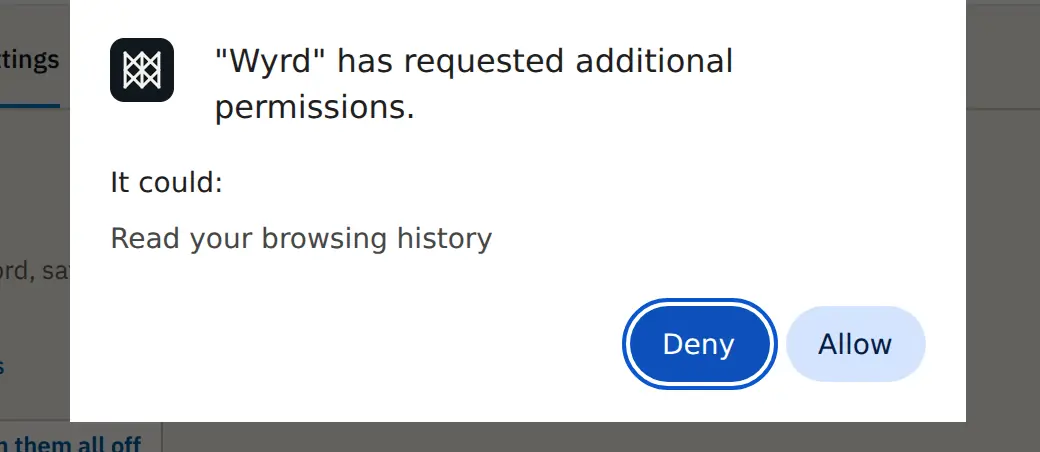
> /clear, press Enter, and turn it on. Chrome asks once for access to your open tabs, which it calls Read your browsing history: saving tabs means reading their addresses and titles, and Wyrd reads them only when you save.
Put a window away: /clear
- In the window you want to put away, type
>, press Space, type/clear researchand press Enter. - The tabs are saved as research and closed. One new tab stays, so the window does not close.
- To bring them back, type
> tabs/research. They open in a new window, pinned tabs still pinned.

No name? Plain > /clear names the bundle from the date and time. A name you have used before is never overwritten: a second research is saved under a new name. To put away only the tab in front, type > /save.
Close duplicate tabs: /dedupe
When a few sites have taken over the window, > /dedupe keeps one tab from each site and closes the rest. The tabs it closes are saved as a bundle first, so nothing is lost.
- Type
>, press Space, type/dedupeand press Enter. - Wyrd keeps one tab per site in every window. The tab you are on and pinned tabs are never closed.
- The closed copies are saved as a bundle named for you; the message in the address bar tells you its keyword, such as
> tabs/dedupe-sep-27-1312.


| You type | What it closes |
|---|---|
> /dedupe | All but one tab per site, in every window |
> /dedupe here | The same, in this window only |
> /dedupe exact | Only copies of the same page, such as the same document open twice |
Find what you saved
Every bundle is on Wyrd's Tab bundles page, with its keyword, its number of tabs and the date. Open one to see its tabs, rename it, or delete a tab you no longer need.

Tip: your 10 most recent bundles follow you to your other computers through Chrome sync. To keep every bundle on every computer, switch on Google Sheet backup and sync; see tab bundles. With search without the prefix set up, the commands work without the > too.
If it does not work
/clearor/dedupeopens the Features page instead. Tab bundles is still off. Switch it on there and accept Chrome's prompt.- Some tabs did not come back. Chrome does not let extensions open its own pages, such as
chrome://settings. Wyrd skips them and tells you how many. /dedupekept a different copy than you wanted. On the Tab bundles page, choose whether it keeps the copy you used last or the one closest to the site's home page.
Next steps
- Tags, the side panel and every option: tab bundles.
- For a set that never changes, a keyword is simpler: open several tabs at once.
- Short names for the pages you open every day: address bar shortcuts.