Every team has a short list of places everyone needs: the handbook, the ticket queue, this quarter's plan. The links end up scattered across chats and bookmarks, some of them out of date, and someone asks for the right one every week. This guide puts them in one list that everyone's Chrome reads.
Short answer. Keep the links in a Google Sheet, have everyone subscribe to it in Wyrd, and type > team/handbook. Change an address in the sheet and everyone gets it.
Which one to use
| Way | Everyone gets changes | People you choose can edit it | Works on personal computers | Built into Chrome |
|---|---|---|---|---|
| Wyrd shared list from a Google Sheet Recommended | Yes | Yes | Yes | No |
| Chrome's exported bookmarks file | No | No | Yes | Yes |
| Chrome's managed bookmarks, set by IT | Yes | No | No | Yes |
Chrome's own ways are in Google's help: importing bookmarks and, for IT admins, managed bookmarks. The rest of this guide is Wyrd's way.
Set up a shared list
You need a Google account to keep the sheet in, and Wyrd for everyone who will use the list. No programming, no server, and no Wyrd accounts. About ten minutes to set up, and a minute for each person to join.
- Make the sheet. Headers
Keyword,URL,DescriptionandCategoryin row 1, one link per row. Share it with the team; Viewer is enough. - Subscribe. In Wyrd, choose the Teams view under Settings → View. On Shared lists, paste the sheet's address, type
teamin Namespace, choose My browser sign-in, then click Preview and Subscribe. - Invite everyone. Click Copy invite link on the list's row and send it. Each person opens it, clicks Preview and Subscribe.
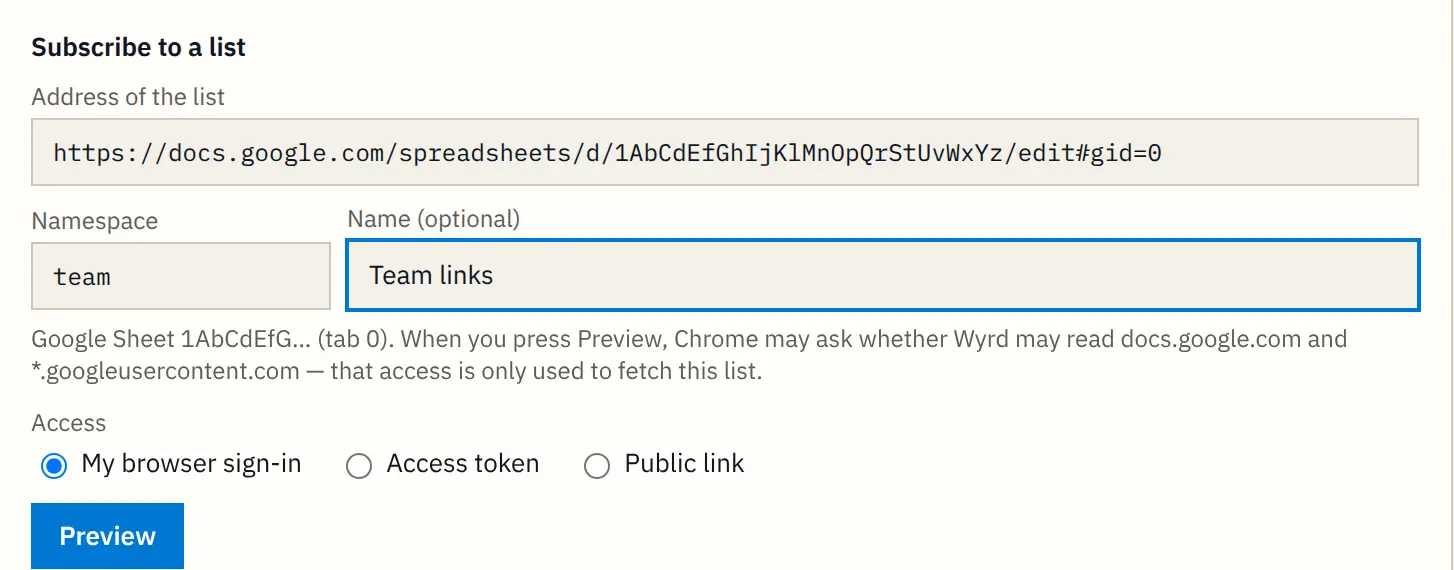
Everyone now types the same words: > team/handbook, > team/tickets 4821. Anyone who has set Wyrd up to search without the prefix can type team handbook with a space instead; without the >, Chrome reads team/handbook as a web address.
Keeping it current
Change an address in the sheet and everyone gets it: Wyrd reads each list again every 6 hours, when Chrome starts, and when someone clicks Refresh. Who can see the list is decided by the sheet's sharing, as for any other Google file. A person's own keyword always wins over the list's, so nobody loses their own shortcuts.
The full setup, with a template to start from and a Google Form so people can add links, is on Wyrd for teams. Wyrd is free for families and friends, and for organisations while up to 30 people use its shared lists; see pricing for larger ones.
If it does not work
- The preview says "No access" for someone who can open the sheet. Publish the tab instead: in the sheet, File → Share → Publish to web, choose the tab and Comma-separated values (.csv), and hand out that link; subscribers choose Public link under Access. Anyone with that link can read the list, so treat it like a password.
- There is no Shared lists page. The view is still Personal. Change it under Settings → View.
- Someone's keyword opens their own page, not the team's. A person's own keyword always wins. The list's version is still there under its name:
> team/wiki.
Next steps
- Lists on GitHub or your own server, tokens, and letting people add links: shared lists.
- The whole team setup, with the template: Wyrd for teams.