A keyword is a word you choose, saved with a page. Type it in Chrome's address bar and the page opens, whatever your history or bookmarks say. Here is the whole loop, from install to the first keyword that works.
Short answer. Pin Wyrd, click its icon on a page you use often, save a word such as payroll, then type > payroll in the address bar and press Enter.
On Firefox? Get Wyrd from Firefox Add-ons instead, and type ! wherever this guide says >: Firefox keeps > for its own Actions search. Everything else works the same.
The steps
- Add Wyrd to Chrome and pin it. Get it from the Chrome Web Store, then click the Extensions icon (the puzzle piece) at the top right of Chrome, then the pin next to Wyrd. Its icon now stays in the toolbar.
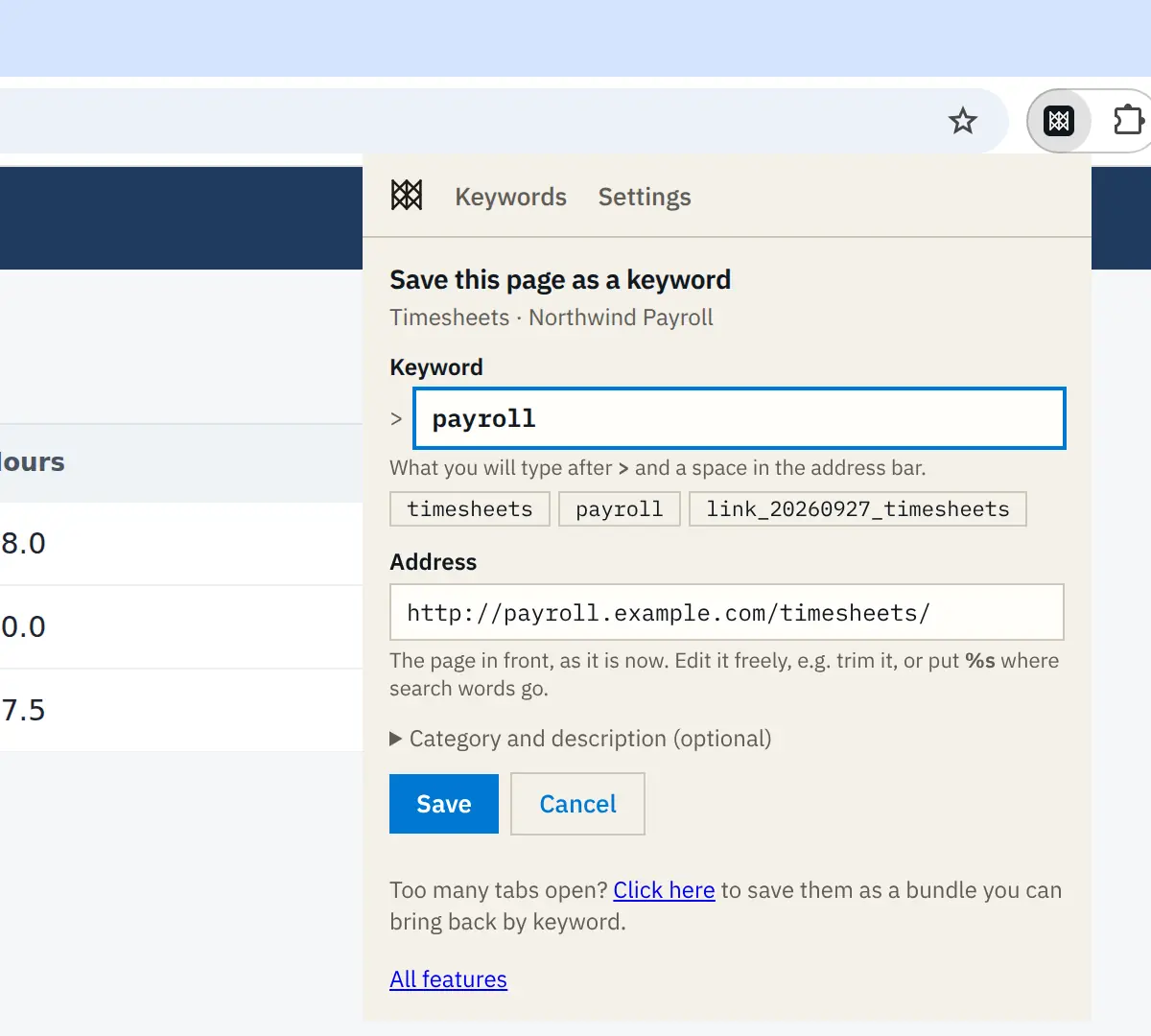
- Save a page as a keyword. On a page you open often, click Wyrd's icon. The address is filled in; pick a suggested keyword or type your own, such as
payroll, and click Save. - Type it in the address bar. Click the address bar, type
>, press Space, then the keyword, and press Enter. Suggestions appear as you type, and anything that is not a keyword goes to your usual web search. - Optional: skip the >. Make Wyrd your address bar's search engine and a keyword works on its own:
payrollinstead of> payroll. In Wyrd, Settings → Optional setup → Search without the > prefix walks you through it in about a minute. See search without the prefix.

Make a keyword search a site
One blank. Put %s in the address where your words go.
| Address | You type | It opens |
|---|---|---|
youtube.com/results?search_query=%s | > yt lofi beats | YouTube's results for lofi beats |
Several blanks. Number them instead: %1 takes the first word you type, %2 the second.
| Address | You type | It opens |
|---|---|---|
jira.example.com/browse/%1-%2 | > jira PROJ 123 | jira.example.com/browse/PROJ-123 |
Step by step: search any website from the address bar.
Keep your keywords organised
Give keywords a category such as Work or Health. > /home opens your Keywords page: every keyword you can type, grouped by category, where you add, edit and delete them. A keyword that does not exist says so, lists the closest ones and offers to create it.
Share keywords with a team or family
Subscribe to a shared list on Wyrd's Shared lists page, and its keywords work in your address bar next to your own. Your own keywords always win. Step by step: give your team the same links.
What Wyrd can see
A new install sees a page only when you click Wyrd's icon on it, to fill in the Save box. It can't read your other tabs or your history. Tab bundles, Define & translate and history suggestions are off at first; switching one on asks Chrome for its permission, and Chrome shows you what it is. Wyrd has no server and no account; your keywords stay in your own Chrome. Every detail is in the privacy policy.
Next steps
- Put a window of tabs away, or close the duplicates, with one command: save your tabs.
- Five ready-made searches (Google, YouTube, Wikipedia, Maps, GitHub) in one click: search any website.
- Everything a keyword can do: keyword syntax.